Datasheet
Products /
Products /

Normalator
Normalising your data makes it simple to target your campaigns effectively.

Target your campaigns effectively
Contact forms that incorporate free text fields, or selections that vary across geographies, business units and industries, can cause issues when it comes to your campaign targeting. Our team work to normalise your data, ensuring reduced redundancy and greater data integrity. Effectively target your campaigns with accurate segmentation.
Automatically normalise with Normalator
Users with access to Eloqua and Marketo can benefit from our Normalator platform. It works to automatically normalise data from free text fields, and present it in categories of your choice. The data becomes:
Comprehensive – containing all the information required for segmentation, reporting and lead generation
Accurate – up-to-date, and without any errors
Standardised – into defined picklists, for easy usability
Integrated – and available in all systems where it needs to be accessed


Clear, accurate data analysis
Transform, categorise and process your data in real-time and drive results for your sales and marketing operations with Normalator.
What is good data?

Comprehensive
Contains all information needed for segmentation, reporting and lead gen.
Accurate
Is up to date and doesn’t contain any errors.
Standardised
Normalised into defined picklists, for easy usability.
Integrated
Available in all systems where it needs to be accessed.



Features
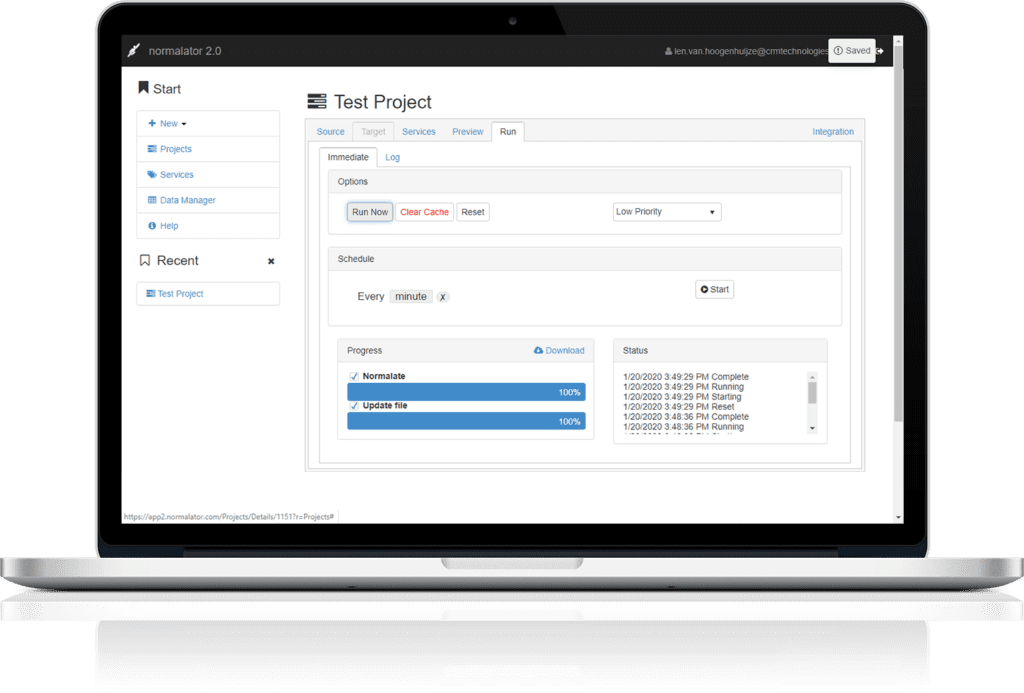
Transform, Categorise and Process data in real-time and drive results for your Sales and Marketing operations

Rules Based Normalisation
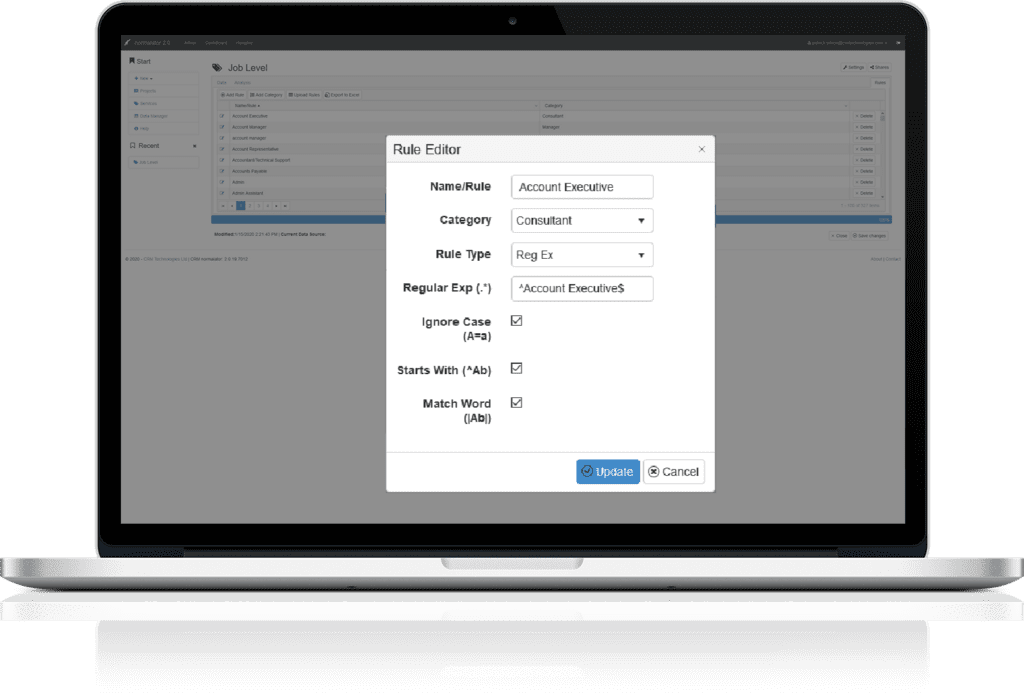
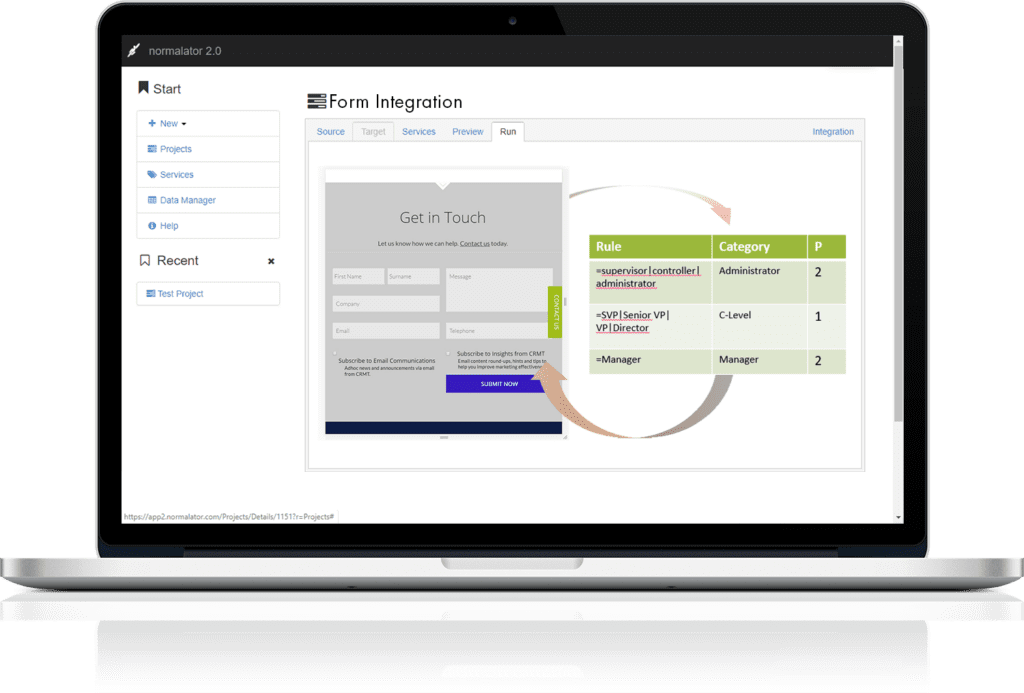
Setup normalisation rules using wild cards and regular expressions through easy to use rule builder.

Persona Generator

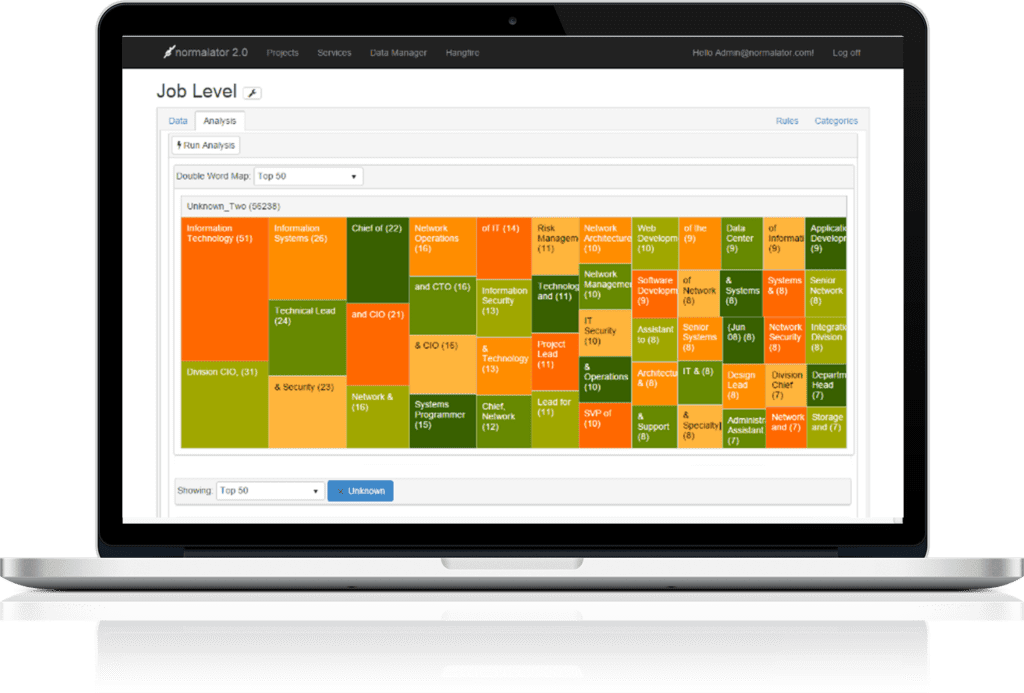
Machine Learning

Form Integration

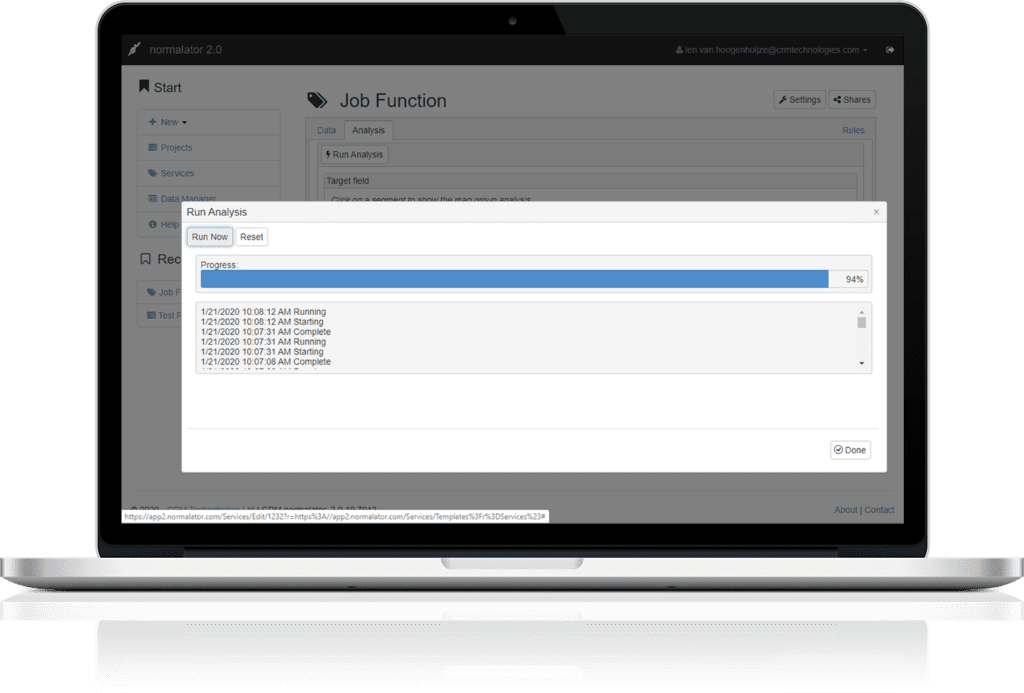
Massive Throughput
Integrate with your Tech stack
Normalator integrates through a REST API, Web Hooks and supports CSV upload. It also integrates with leading Marketing Automation Tools.
![$logo['logo']['alt']](https://www.crmtdigital.com/wp-content/uploads/2022/10/Salesforce.png)
![$logo['logo']['alt']](https://www.crmtdigital.com/wp-content/uploads/2022/10/pngegg-1.png)
![$logo['logo']['alt']](https://www.crmtdigital.com/wp-content/uploads/2022/10/clipart1141185-1024x682.png)
“Strong B2B organizations no longer undertake data cleansing projects, but instead follow data policies and routines to consistently maintain data quality””
SiriusDecisions
Get started with normalator